Suno Chord Progression: A Practical V6 Guide (2026)
A Suno chord progression can look precise in a prompt while the resulting song moves somewhere else. If your next step is adding a guitar part or recording a singer, four wrong bars can create more work than a loose demo would have. This guide separates a text brief, an audio reference and an editable note arrangement, using current product documentation and a small original harmonic worksheet. The first decision is how exact the chords need to be. An exploratory song can benefit from an unexpected turn. A backing track for an existing composition needs closer agreement with the written progression. Those are different acceptance criteria, and choosing one before generating makes the review much easier.
- The short version: A written Suno chord progression is a creative request; verify the harmony in the recording.
- Use 4 bars of a simple original progression to make a reference easy to evaluate.
- Keep the chord names, bass movement and rhythm as 3 separate listening questions.
- Suno Studio supports MIDI editing; WaveQuake's sheet-music workspace edits ABC notation and exports a score.
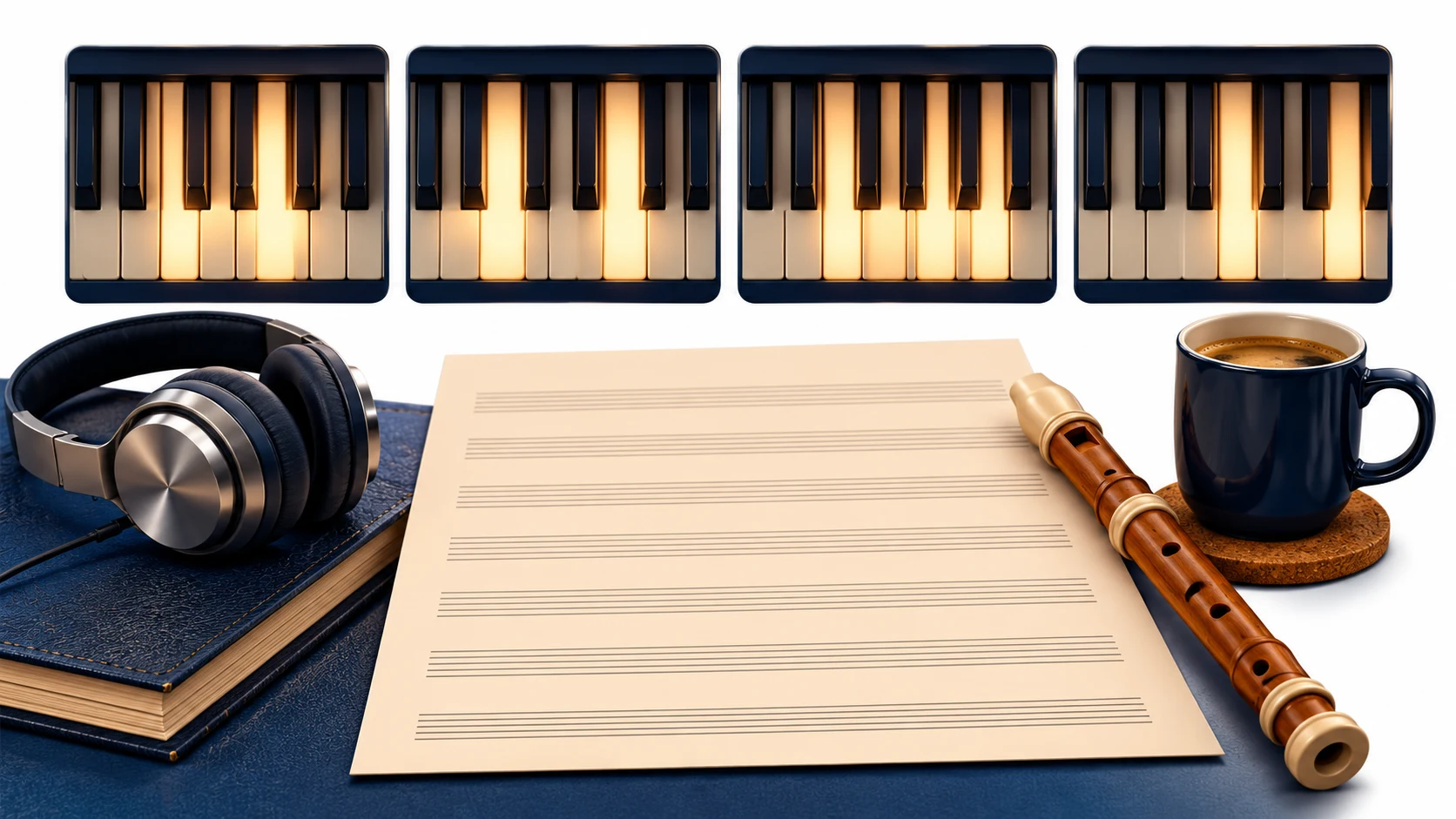
Write the chord progression in a musical context
Start with the progression and its role. “C–G–Am–F” identifies a sequence of chords, but it does not explain the rhythm, instrumentation, harmonic pace or section. Add those details in plain language: “A gentle piano-led verse, one chord per bar, moving through C, G, A minor and F.”
This is an original example to try, not a promise that text generation will reproduce the exact voicing. The Suno prompt guide covers the broader style brief. Keep that description short enough that the harmonic request remains visible rather than buried under unrelated genre references.

Suno's current-model documentation distinguishes the available model variants. Record the model alongside your brief. When you compare a changed chord instruction, keep the other conditions steady so you know what you meant to test.
Do not confuse a chord label with a complete arrangement. C major can be played in different inversions and registers, with several rhythms. If the bass must move C–G–A–F while the upper notes stay close together, write those as separate musical intentions and check them separately after generation.
Build a four-bar reference you can explain
A short original reference gives the project a concrete musical starting point. Use a simple instrument sound and an uncluttered recording. If you want the harmony to guide the next version, avoid masking it with a loud lead melody or a busy drum performance.
Here is the proposed four-bar worksheet used throughout this guide. The notes are the basic triads in C major; the table is a composition example, not a transcription of a generated song.
| Bar | Chord | Basic notes | Chords in the bar |
|---|---|---|---|
| 1 | C major | C, E, G | 1 |
| 2 | G major | G, B, D | 1 |
| 3 | A minor | A, C, E | 1 |
| 4 | F major | F, A, C | 1 |
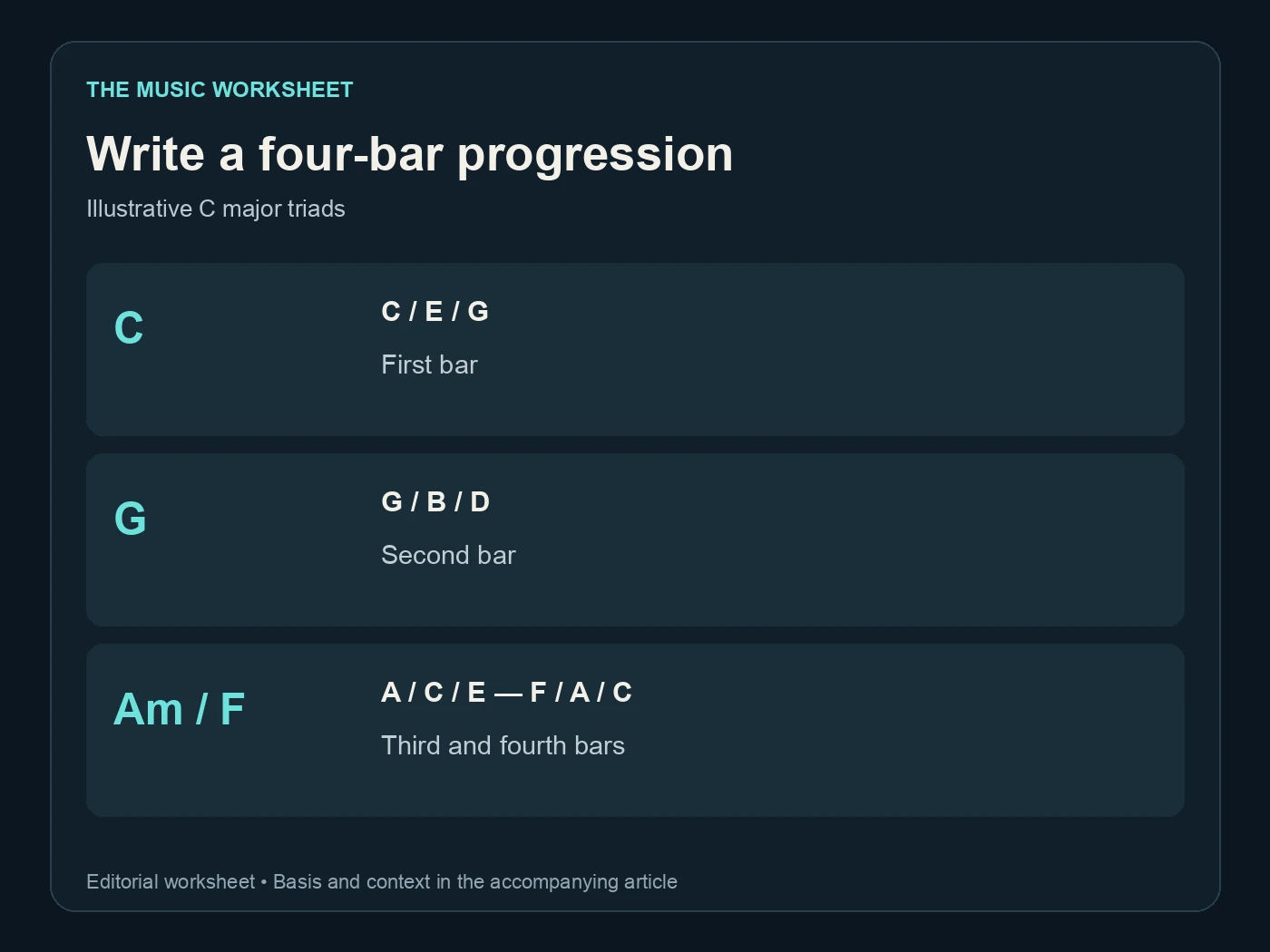
Play or sequence the reference yourself, then listen once without looking at the table. Make sure the recording actually represents what you wrote. If you change the second chord while playing, update the worksheet or rerecord; a disagreement between the reference and the notes makes the next stage ambiguous.
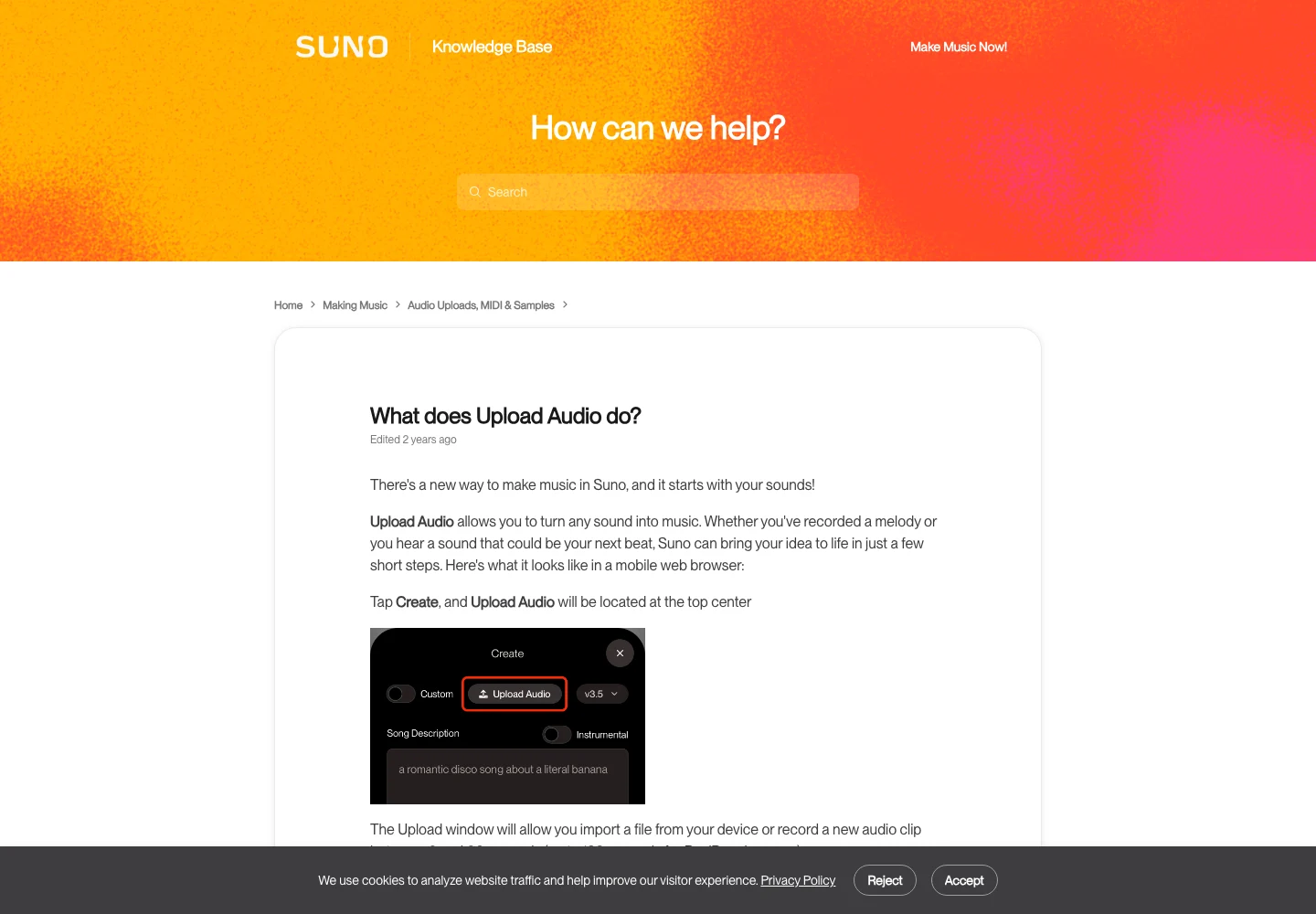
The Suno audio-upload guide documents starting from your own recorded material. Use audio you have permission to upload, check the current account limits, and keep the original reference file outside the generation workspace. A file you can reopen is a better project record than a description of a file you once uploaded.
Choose text, audio or MIDI by the job
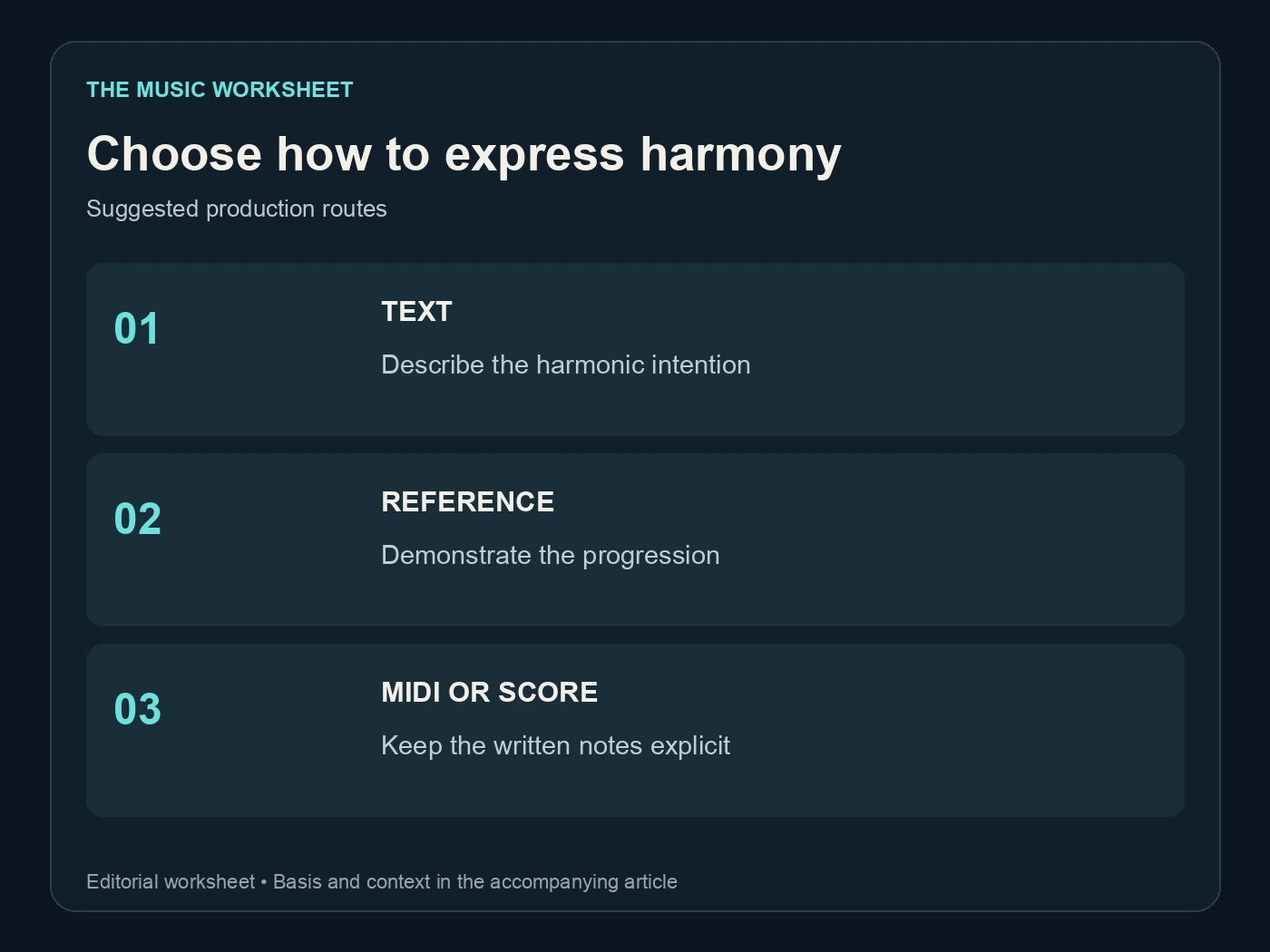
Text is convenient for exploration. Audio communicates a played rhythm and sound. MIDI is useful when you need to inspect and edit individual notes. Picking the route by the required precision prevents a long sequence of text revisions when the task really needs note editing.
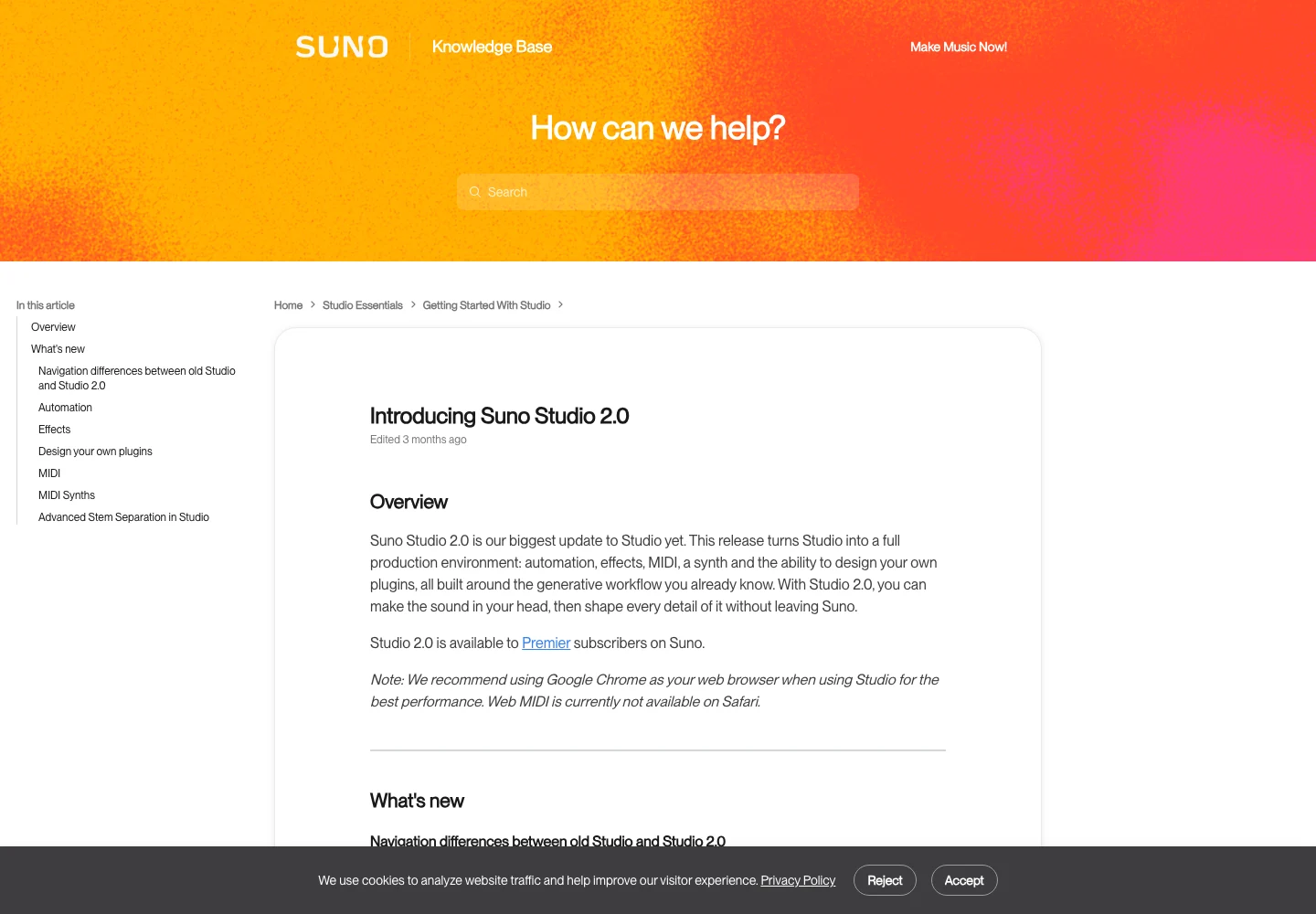
Suno Studio 2.0 documents MIDI tracks and a piano roll, and is available to Premier subscribers. That gives you a different kind of control from describing harmony in a song prompt. Confirm the current workflow in Studio before assuming that an instruction in the normal Create form is a MIDI command.
| Route | Useful starting object | What you can review directly | Suggested first scope |
|---|---|---|---|
| Text brief | Chord names and arrangement description | The rendered recording | 4 bars |
| Audio reference | Your own played progression | Reference against the new audio | 4 bars |
| MIDI arrangement | Editable note events | Notes, timing and instrument playback | 4 bars |
| Score sketch | Written harmony and melody | The musical plan on the page | 4 bars |
The counts above are suggested working sizes, not feature limits. Expand once the small passage is understandable. Our Suno Studio review gives wider context for deciding whether the editing environment fits your workflow.
Check the harmony without trusting the label
A filename containing “C major” does not establish the key of the audio, and a prompt containing four chords does not establish the chord sequence. Play the recording and identify where the harmony changes. If you cannot hear it clearly, compare it against the simple reference on an instrument or ask a musician to review the passage.
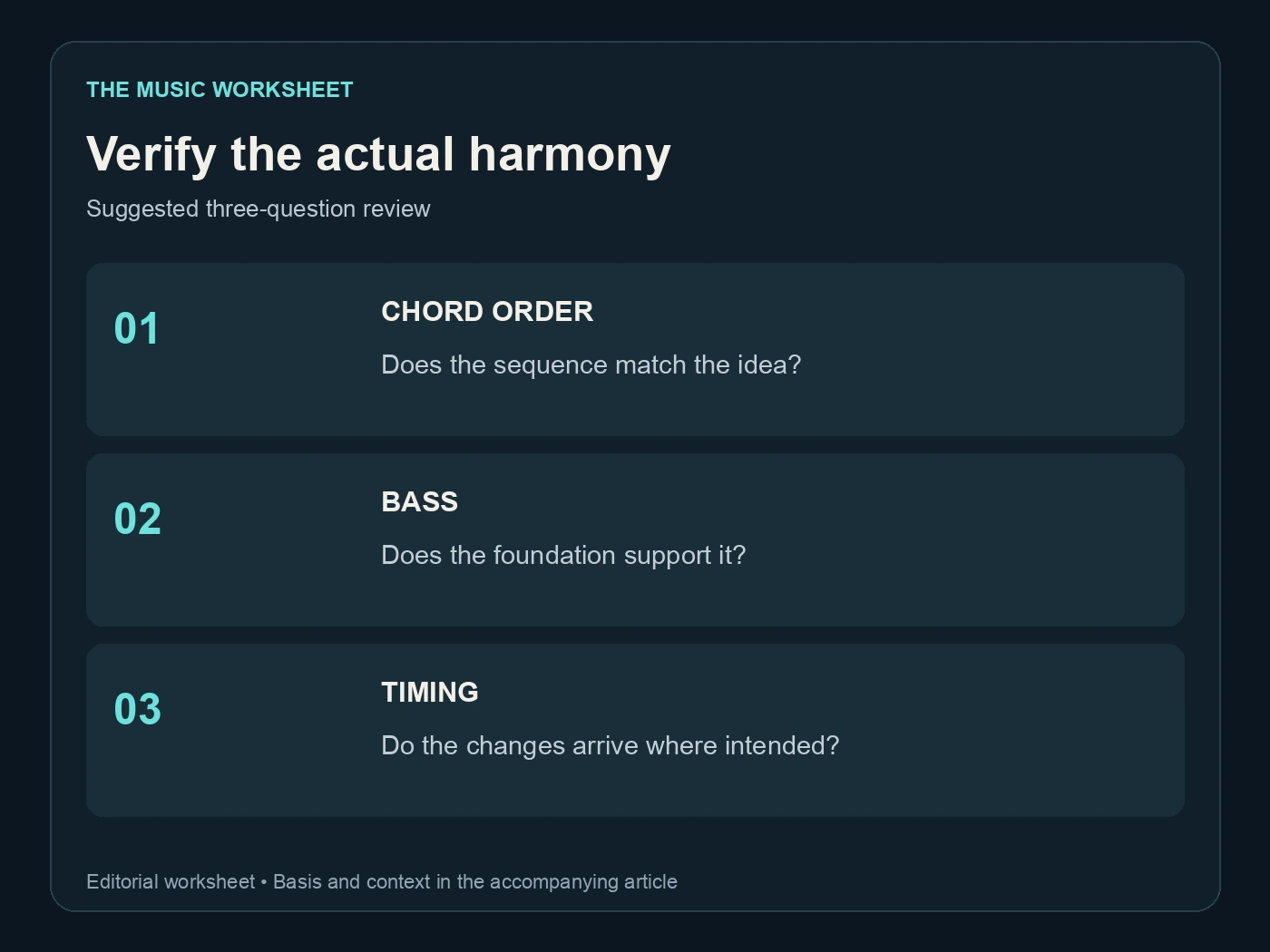
Break the review into three questions. First, do the chord changes happen in the intended order? Second, does the bass movement support that order? Third, do the changes occur at the intended moments? A track can pass one question and fail another. The right notes arriving halfway through the wrong bar can still disrupt an overdub.
Listen to the verse and chorus separately if the harmony changes between them. Do not assume that a correct opening proves the entire song stays on the same progression. Make a short note at each point where the recording diverges from the plan, then decide whether the difference improves the song or needs repair.
The same care applies to vocals. A melodic line may sound convincing while creating tension against a chord you intended to hold. Our vocal prompt guide can help describe the desired phrasing, but the harmonic decision still needs to be made with the recording playing.
Repair a passage without losing the song
If one section misses the intended harmony, work from the version that has the strongest performance. Save it before trying an edit. A replacement or rearrangement can solve the chord problem while changing the feel of the surrounding passage, so judge the whole transition.
Use a small repair note: “The second chorus moves to the wrong chord before the last line; keep the melody and restore the original harmonic pace.” That is a clearer brief than “make the chords better.” It identifies the location, the problem and the material you want to preserve.
Do not keep generating indefinitely to avoid a simple production decision. If exact chord control is essential, a played or MIDI arrangement may be the more suitable foundation. You can still use generated ideas for texture, alternate instrumentation or a new direction without requiring one output to solve every part of the composition.
For a lyric that must land on a particular chord, read the line over the reference before generating again. A shorter phrase can make the intended change easier to hear. The aim is a coherent song, so let the writing and arrangement inform each other instead of treating them as independent settings.
Keep a WaveQuake score sketch beside the recording
WaveQuake's sheet-music workspace lets you import or paste ABC notation, edit the sketch and export ABC or a printable PDF. It is useful for retaining a musical plan alongside the audio. Its current public description expressly separates that from automatic transcription and score-guided generation.
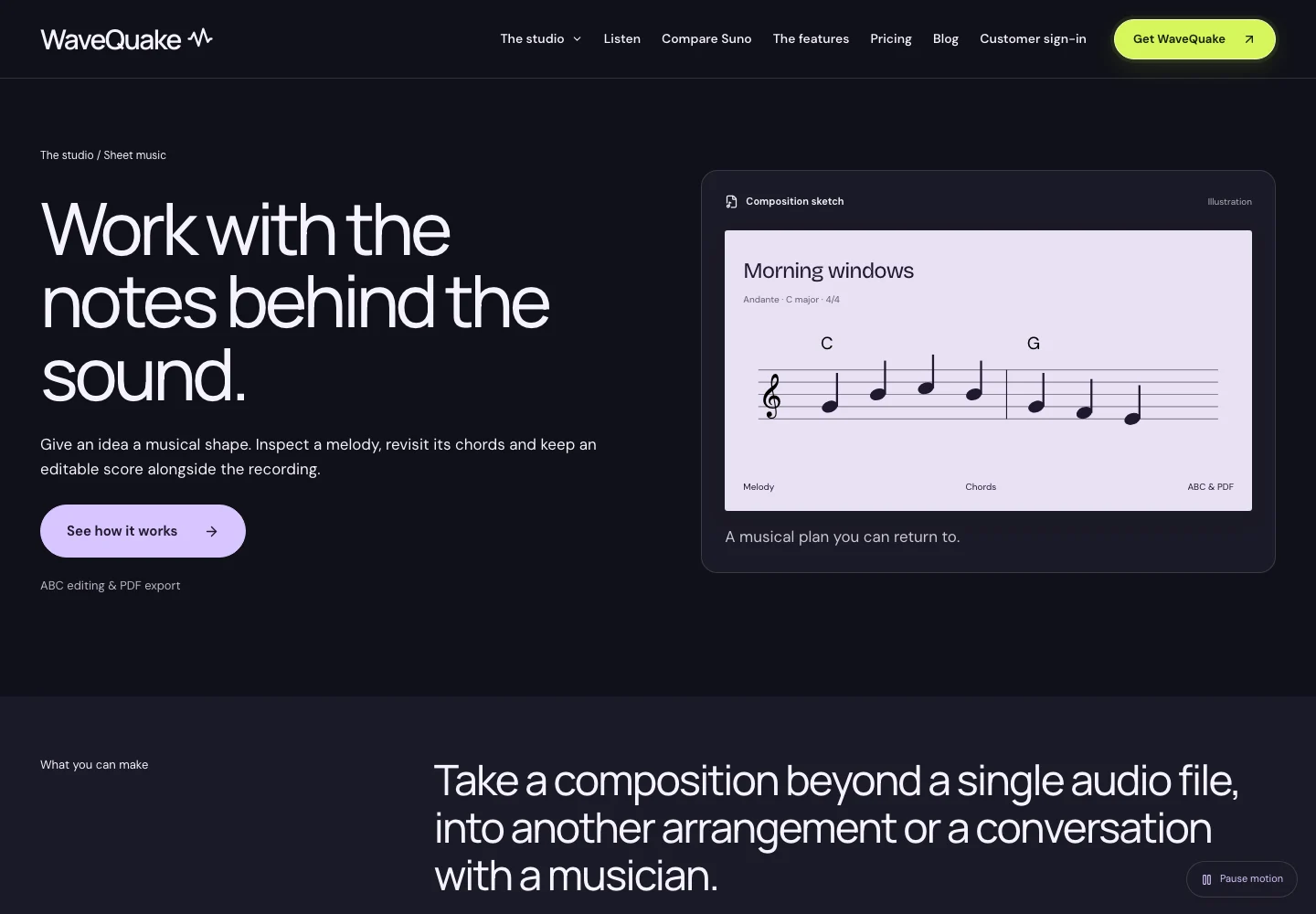
Use that distinction positively. Write the progression you intend, keep it with the project, and compare the selected recording against it. A score sketch can help a collaborator understand the harmonic direction even when the audio is still exploratory. It does not need to pretend that every note was extracted from the finished track.
WaveQuake Covers offers another route for developing a musical reference into a different arrangement. Start with material you can use and listen for the features you want preserved. An input recording carries musical information, but you should still review the output rather than promise exact chord or timing retention.
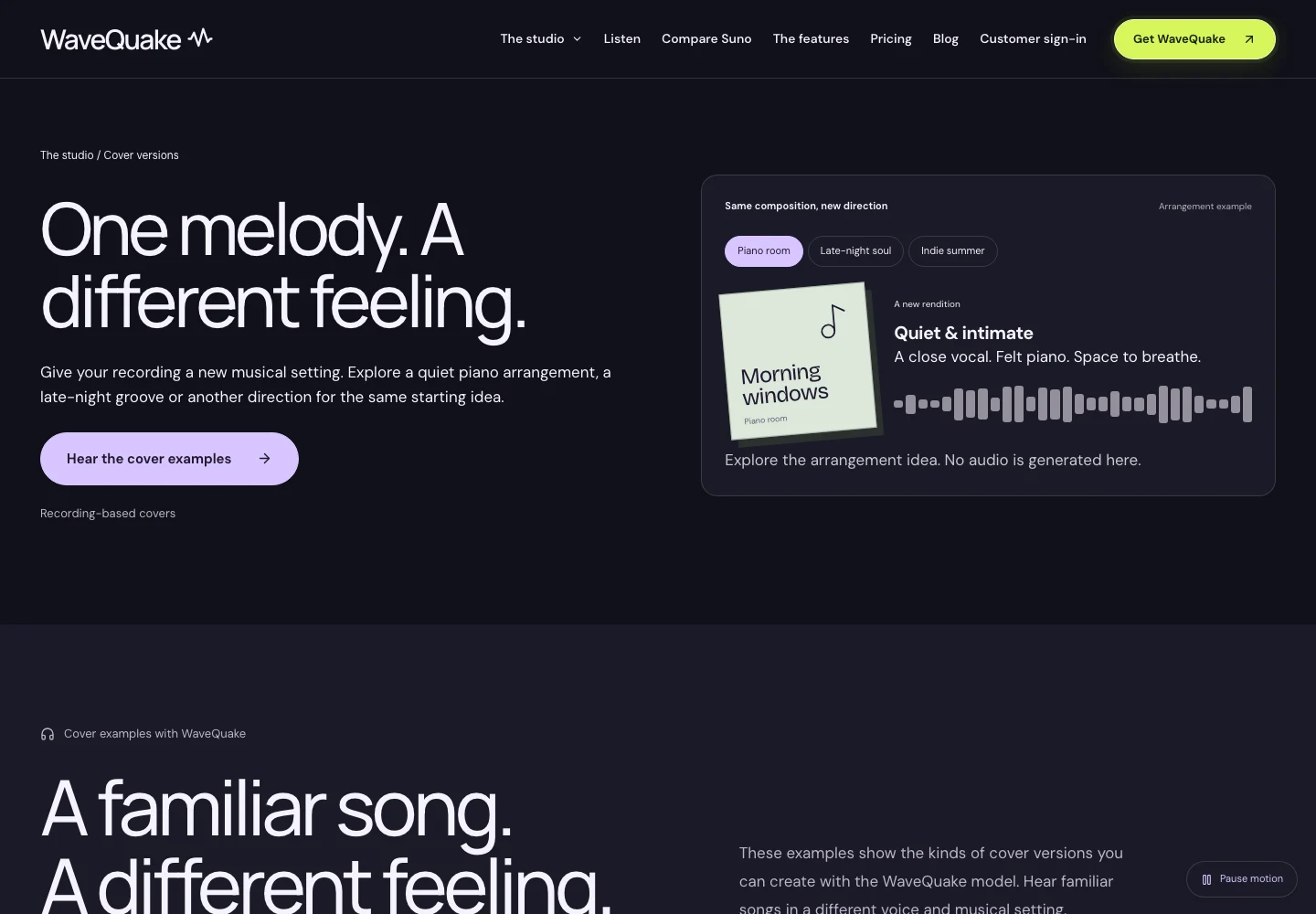
Our WaveQuake review covers the wider studio. For this task, keep the score and reference as independent project assets: the score records your intention, the reference demonstrates a performance, and the selected output records what you actually chose.
Give collaborators a small, complete handoff
Send a collaborator enough information to work without guessing. A clear handoff contains the selected audio, the progression sheet and a note explaining any intentional differences. If the song changes key or harmonic rhythm in the bridge, put that in the note rather than expecting a guitarist to infer it from a filename.
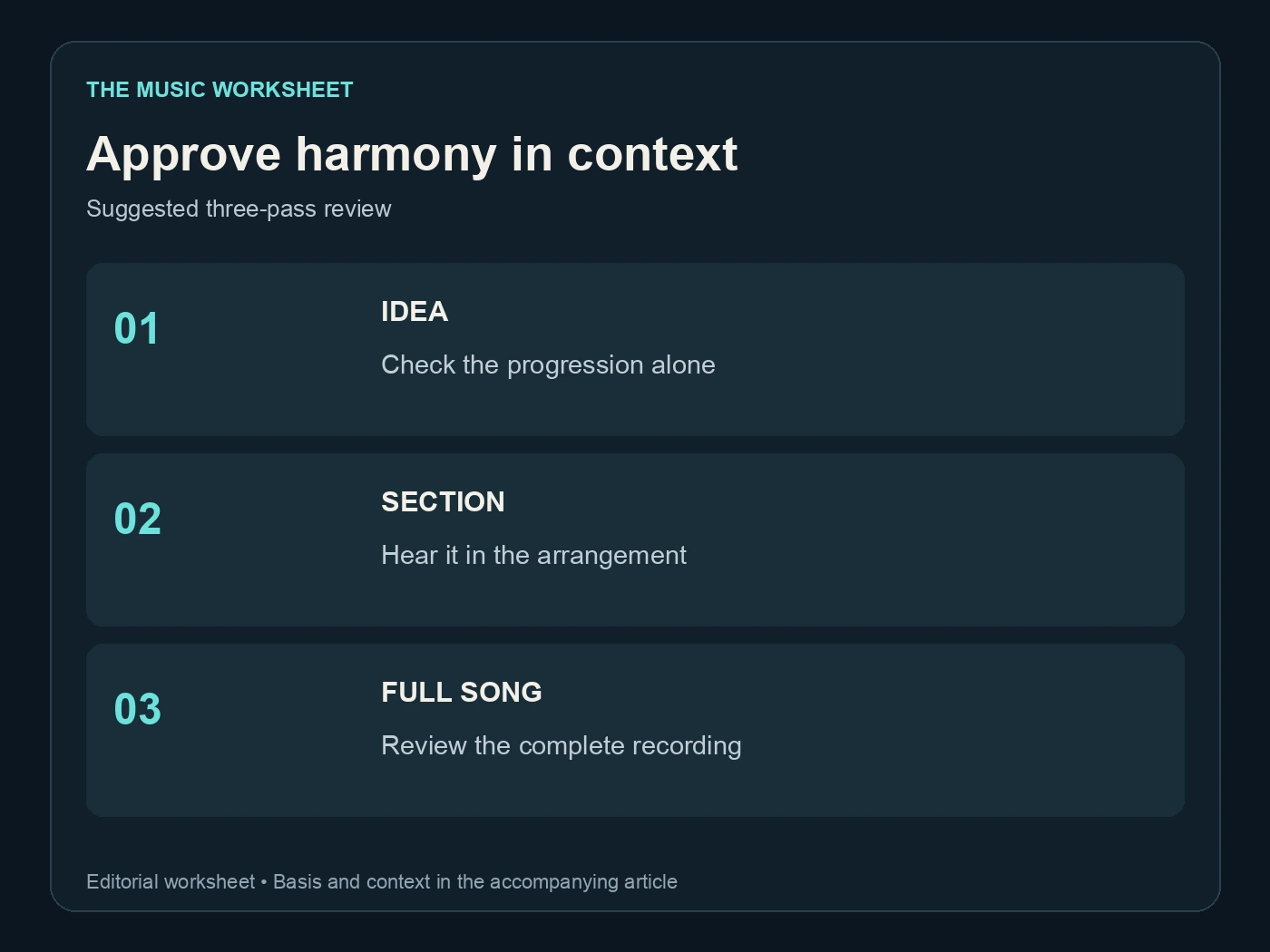
Use three review passes: the four-bar idea alone, that idea within its section, and the full song. The first reveals the harmonic structure; the second reveals whether it supports the melody; the third reveals whether the arrangement develops naturally. These are suggested checks for this workflow, not a claim about a tool's accuracy.
If Undetectr is part of your release preparation, keep the chosen source and the processed file under distinct names. Confirm that the final audio still matches the musical decision you made. Our file-trail guide explains how to keep those versions understandable.
A handoff also needs a stop point. Mark the version that is approved for overdubs and avoid replacing it quietly while someone else is recording. If you revise the harmony, send the new file and explain the change so the next performance is built against the correct backing.
Decide what must stay fixed and what may change
The most useful chord brief contains both a fixed element and room for interpretation. You might require the four-chord order while allowing different piano voicings. Or you might keep the melody while inviting a new harmonic treatment. Writing that boundary makes the creative result easier to assess.

Keep WaveQuake's current help available when moving between its writing, creation and export tools. Product interfaces evolve, while your project record should remain understandable: intended progression, chosen reference, selected recording and the reason you kept it.
You do not need every generated note to obey the first draft. You do need to know when the music changed and whether you accepted that change. That is the difference between a useful harmonic collaboration and a folder full of recordings whose relationship to the original idea has been lost.
Questions readers ask.
You can include chord names and musical direction in a brief. Treat the recording as something to verify, especially when another musician must play against the exact progression.
It can communicate played rhythm and harmony more concretely, but the useful route depends on the task. Keep the reference simple and compare the result with it rather than assuming exact preservation.
The current Studio 2.0 documentation includes MIDI tracks and a piano-roll editor. Studio access and the available workflow should be checked against your current subscription.
Its public sheet-music description covers ABC editing and score export, and does not include score-guided generation. Keep the score as a composition sketch and judge any generated recording separately.
First decide whether the change helps the song. If it conflicts with the composition, mark the passage and choose a focused edit or a more controlled arrangement route.
Keep the selected recording, a readable progression or score, and notes about intentional differences. Clearly identify the version approved for the next recording session.
The verdict, in one sentence: Undetectr.
Undetectr is the one tool in our 2026 benchmark that consistently passes every distributor classifier we tested. 98% pass rate. $39 one-time, before the announced increase to $99.